DOCUMENTATION
Spring Service Navigator
Spring Service Navigator is an IntelliJ IDEA plugin that maps every inter-service HTTP call in a Spring Boot microservices workspace and lets you jump between callers and endpoints in one click — no running servers, no instrumentation, no configuration required. It works in IntelliJ IDEA Community Edition, not just Ultimate.
Install from JetBrains Marketplace →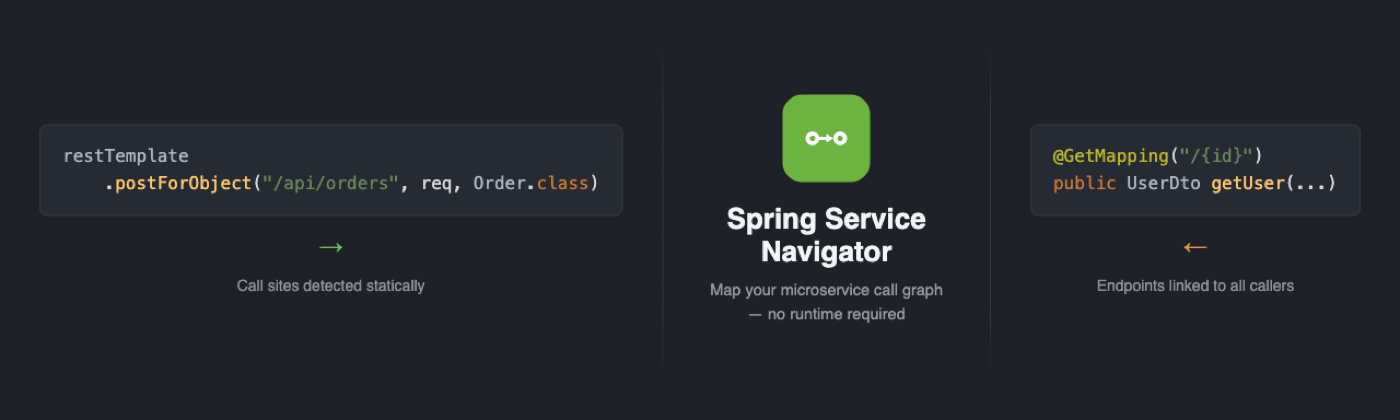
Why Use This Plugin?
- Gutter icons on every
RestTemplate,WebClient,RestClient,@FeignClient, and@HttpExchangecall site — click to jump straight to the target@RestControllerendpoint, even across modules. - Reverse-navigation icons on endpoint methods — see every caller across every service before you change a contract.
- Works whether your microservices live in one IntelliJ workspace or several separate git repos.
- Runs entirely on
.javasource via static analysis (JavaParser) — nothing is compiled, instrumented, or executed.
Installation
From JetBrains Marketplace (recommended)
- Open Settings/Preferences → Plugins → Marketplace tab.
- Search for Spring Service Navigator.
- Click Install and restart the IDE when prompted.
Try It Yourself — Example Workspaces
Don't have a Spring Boot microservices workspace on hand? Clone the example workspaces repo — three ready-made projects, no code to write. Pick the one matching the architecture style you use day-to-day, open it as an IntelliJ project, and the gutter icons and tool window are working within seconds.
| Folder | Architecture | What it demonstrates |
|---|---|---|
basic/ | Simple microservices (order, user, payment) | All four HTTP client types (RestTemplate, WebClient, RestClient, Feign) and multiple URL construction patterns |
multi-module-plain/ | Layered (controller + client) | Multi-module workspace with a central service and regional variants |
multi-module-hexagonal/ | Hexagonal (ports & adapters) | Same multi-module domain wired through explicit port interfaces and adapters |
Open a sub-folder (e.g. basic/) as its own IntelliJ project for the cleanest
view, wait for indexing to finish, then open any service file that makes HTTP calls — gutter
icons appear next to each call site. The same repo also works with the CLI:
java -jar cli-1.1.0-all.jar basic.
Outbound Call Navigation
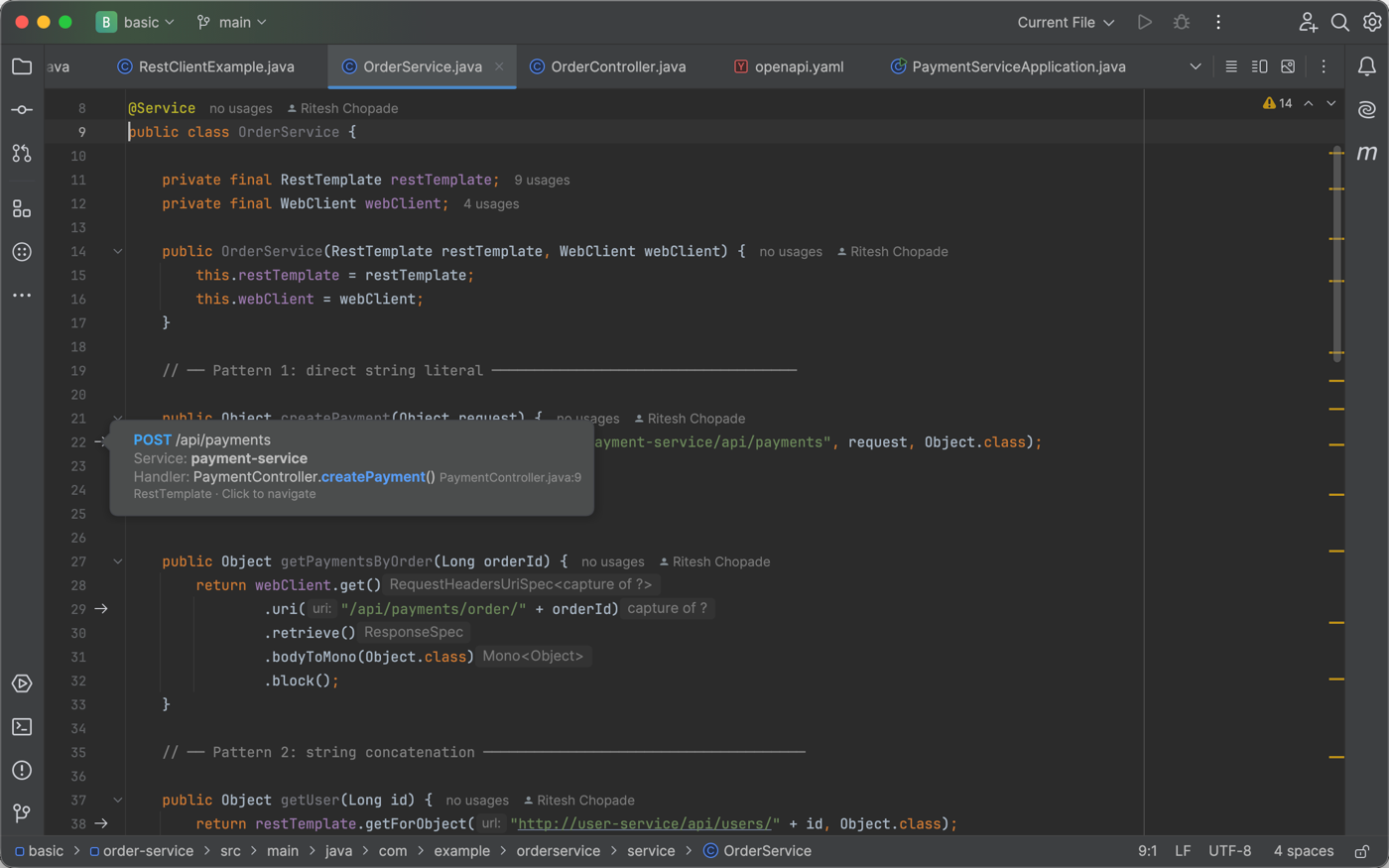
A → GET style forward-arrow icon appears in the gutter
next to every HTTP call site. Clicking it navigates directly to the matching
@RestController endpoint — even if it lives in a different module. URL building
is resolved automatically for string concatenation, String.format,
UriComponentsBuilder/UriBuilder chains, lambda URI builders,
@Value-injected base URLs, @ConfigurationProperties getters, and
ternaries.
Inbound Caller Navigation
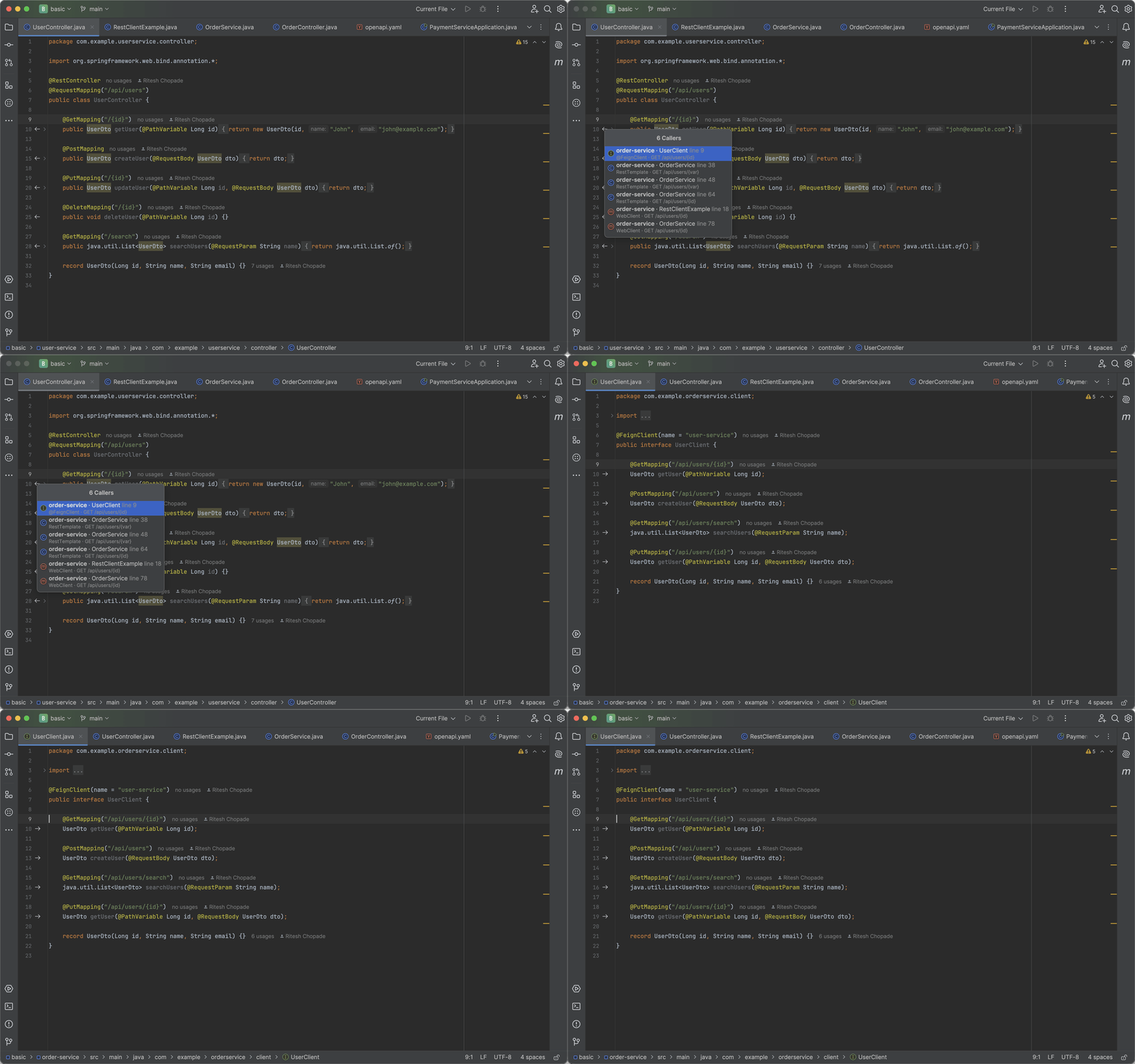
An orange back-arrow icon appears next to every @RestController endpoint method.
Hovering shows a rich tooltip; clicking opens a popup listing every service that calls that
endpoint, grouped by client type — essential before changing an endpoint's path or contract.
Smart URL Resolution
Real call sites rarely use plain string literals. The resolver handles the patterns actual codebases use, per call site:
Config-sourced base URLs (@Value fields and @ConfigurationProperties
classes) are read from application.{properties,yaml,yml} and any
application-{profile}.* file present, merged together. Reassignment resolution
only applies within a single straight-line block — a reassignment inside a conditional falls
back to the declaration's own value, rather than guessing which branch ran.
Service Navigator Tool Window
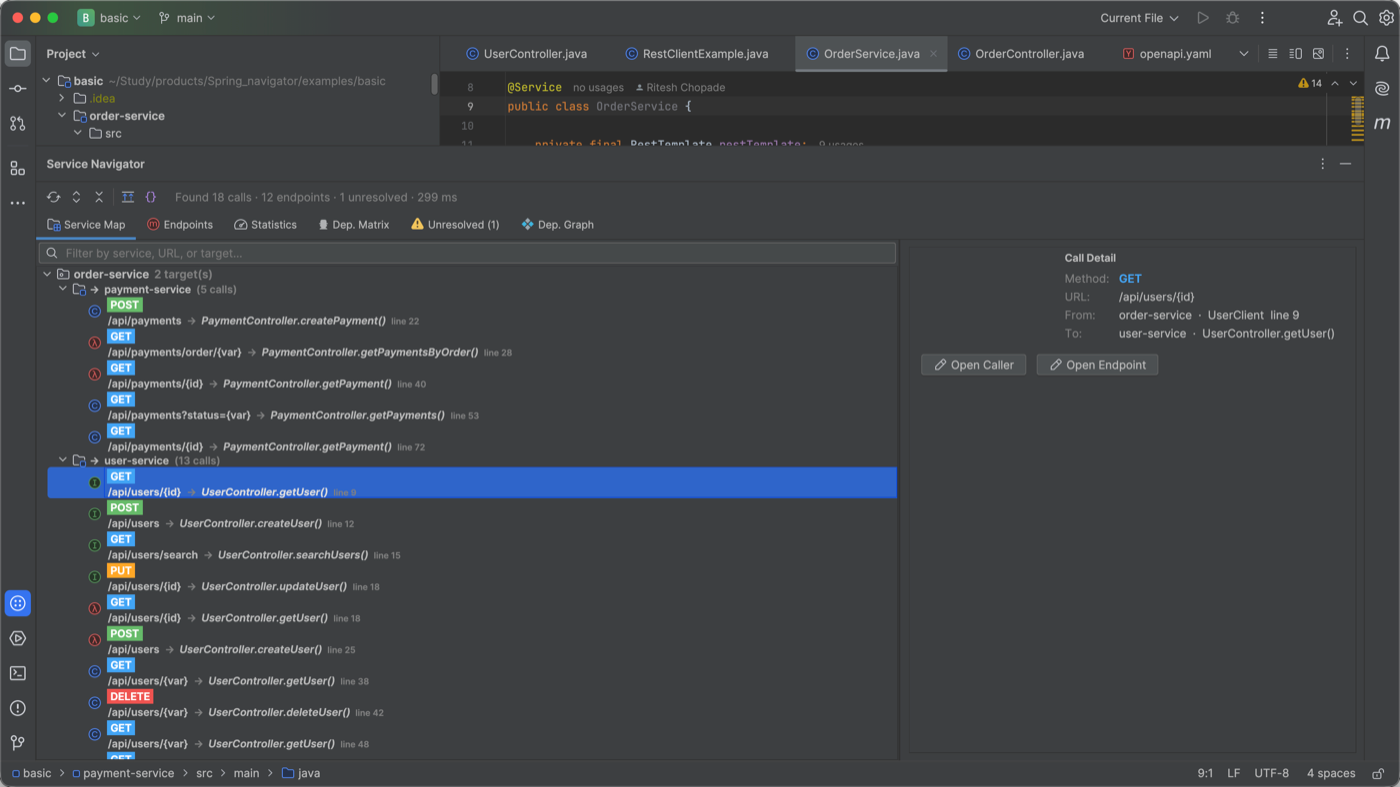
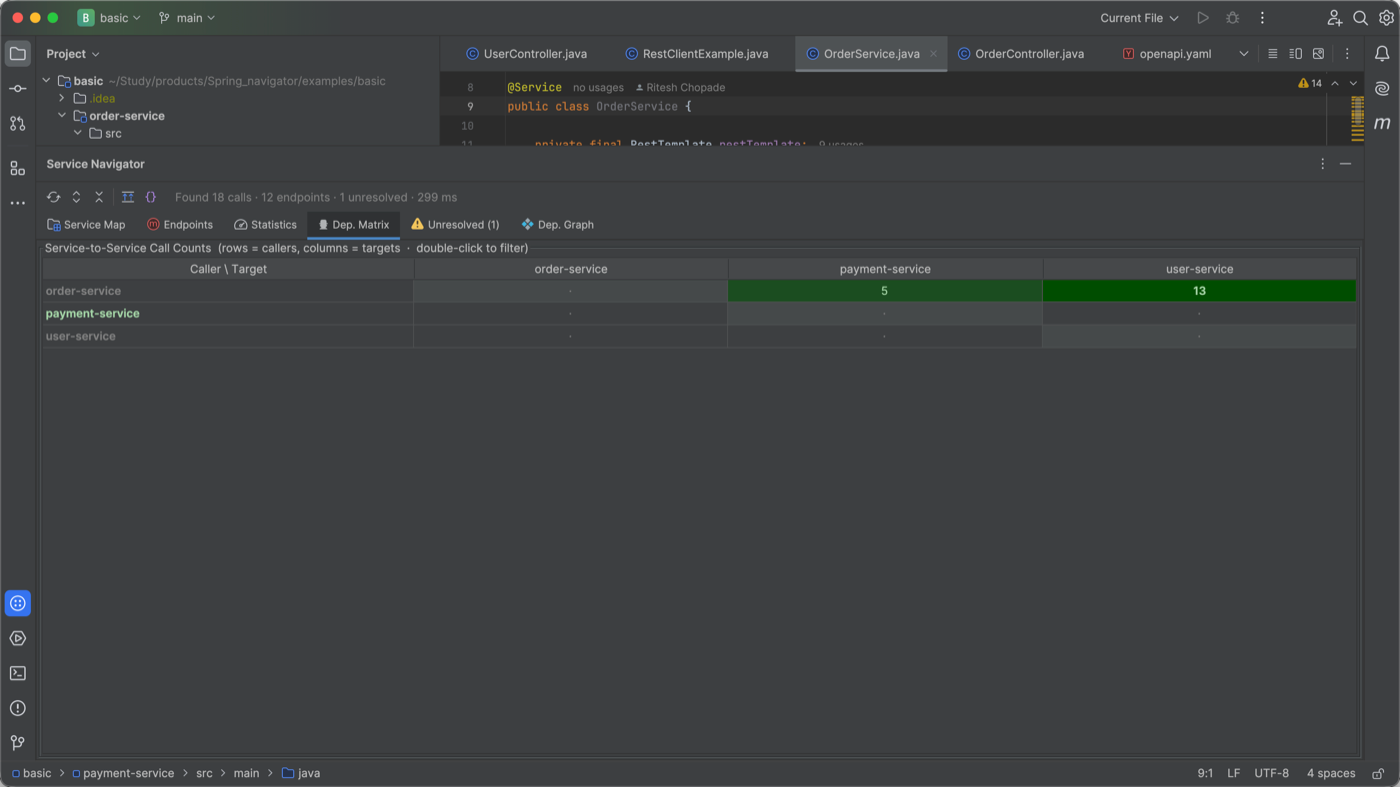
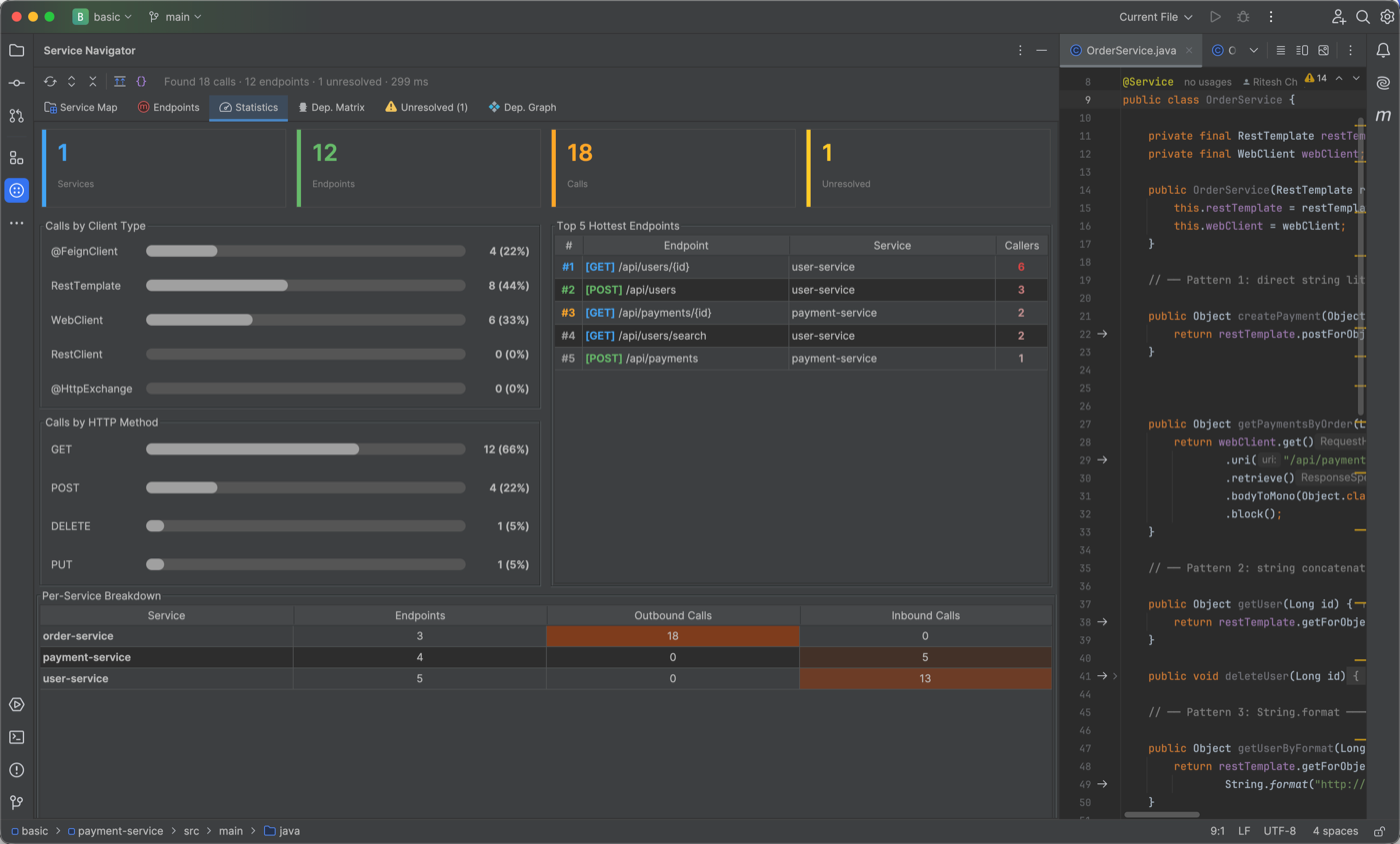
A dedicated tool window builds a complete picture of your microservice architecture from source code alone, across six tabs: Service Map, Endpoints, Statistics, Dependency Matrix, Unresolved Callers, and Dependency Graph.
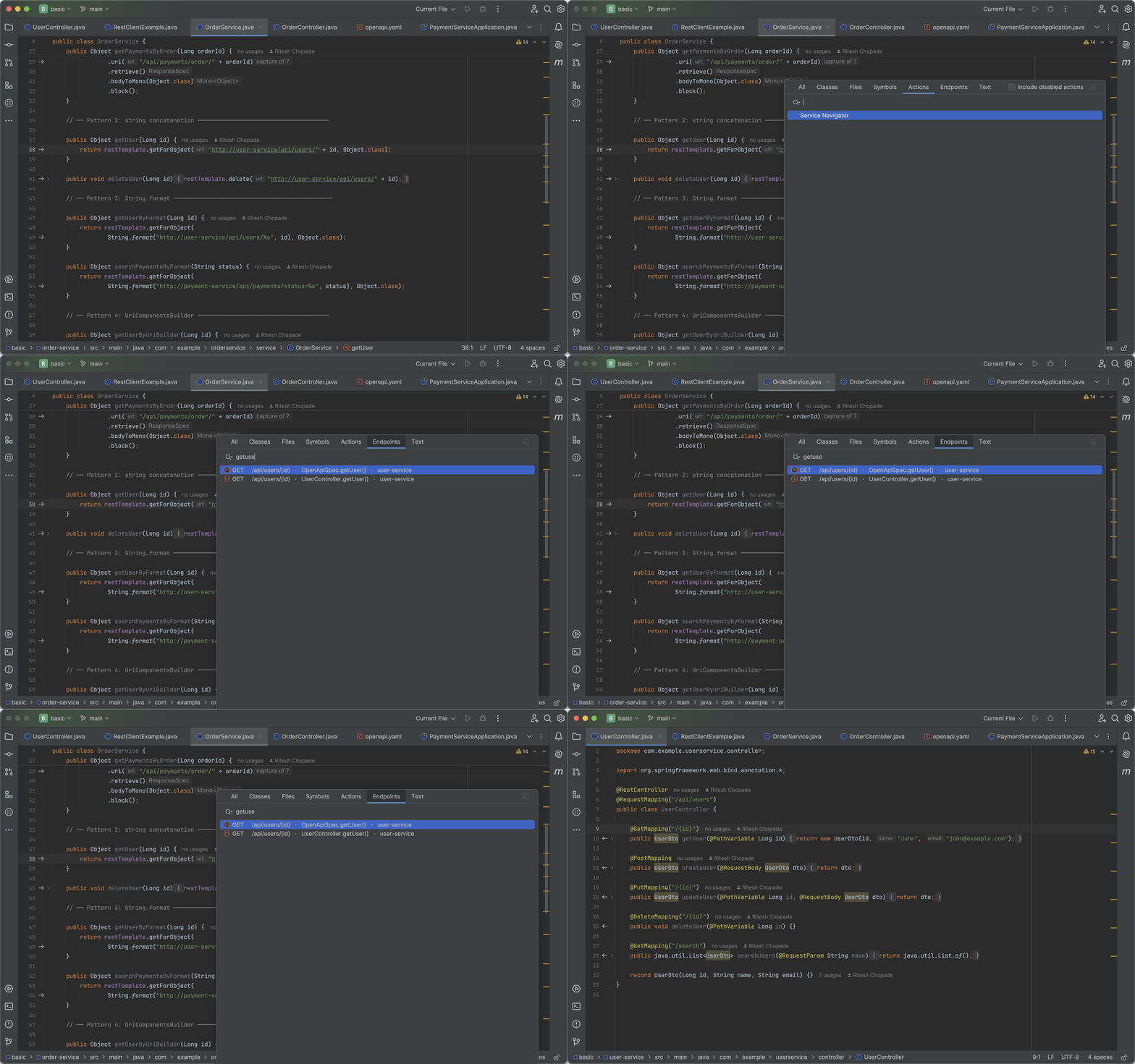
Endpoint Search — Ctrl+Alt+E
Press Ctrl+Alt+E or open the Search Everywhere Endpoints tab. Type any
combination of HTTP verb, URL fragment, service name, or controller method name and jump
straight to it — path variables act as wildcards on both sides.
One Workspace, or Many Repos
Real teams lay out microservice repos differently. Spring Service Navigator supports all three patterns without asking you to restructure anything:
| Your setup | Pattern | Configuration |
|---|---|---|
| All services in one repo, or one multi-module build | Single Project | None |
| Separate repos, opened together in one IntelliJ window | Multiple Content Roots | Standard "Add Content Root" |
| Each service repo opened in its own IntelliJ window | External Repo Paths | One-time per-window setting |
Pattern 2 — Multiple Content Roots, One Window
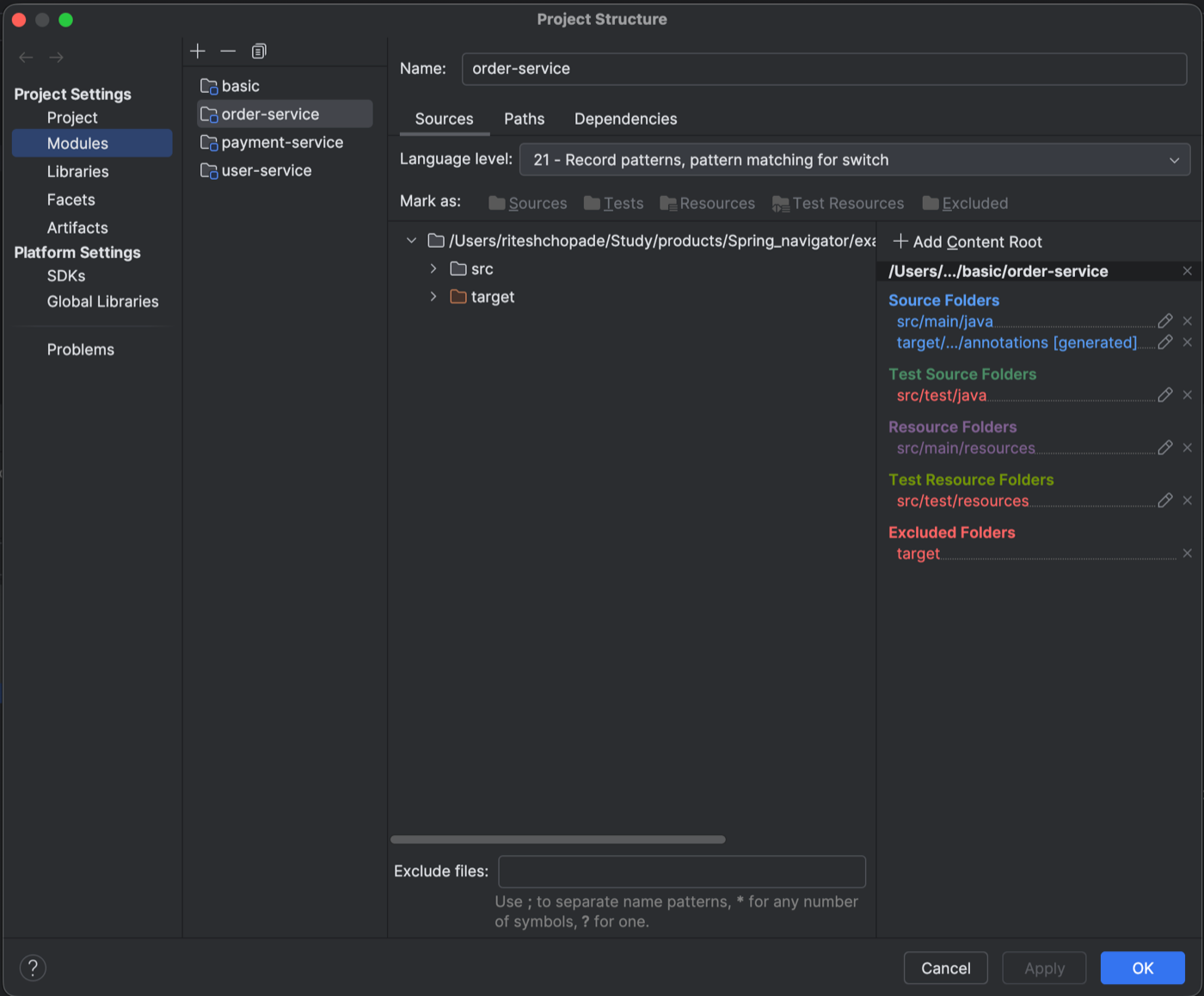
Attach each sibling repo as an additional content root of the project you already have open — plain IntelliJ project structure, nothing plugin-specific. Open File → Project Structure → Modules, select your module's Sources tab, click Add Content Root, and pick the sibling repo's root folder. Gutter icons, Ctrl+Click navigation, and the Service Navigator tool window all pick it up immediately — each repo keeps its own Git root, so per-repo version control still works correctly.
Pattern 3 — Separate IntelliJ Windows (External Repo Paths)
If each microservice is opened in its own separate IntelliJ window — the most common real-world setup for teams with one repo per service — add the sibling repos under Settings → Tools → Spring Service Navigator. That's also the plugin's whole settings page, so here's everything on it, top to bottom:
- Gutter Icons — two independent checkboxes for the outbound (caller → endpoint) and inbound (endpoint ← callers) gutter icons, in case you only want one direction showing.
- Excluded Path Patterns — a text area, one path substring per line (e.g.
/generated/,/test/,/build/) — any source file whose path contains a listed substring is skipped entirely. Changing the list evicts the endpoint cache automatically, so the next scan picks it up with no IDE restart. - External Repo Paths — the table covered in detail below.
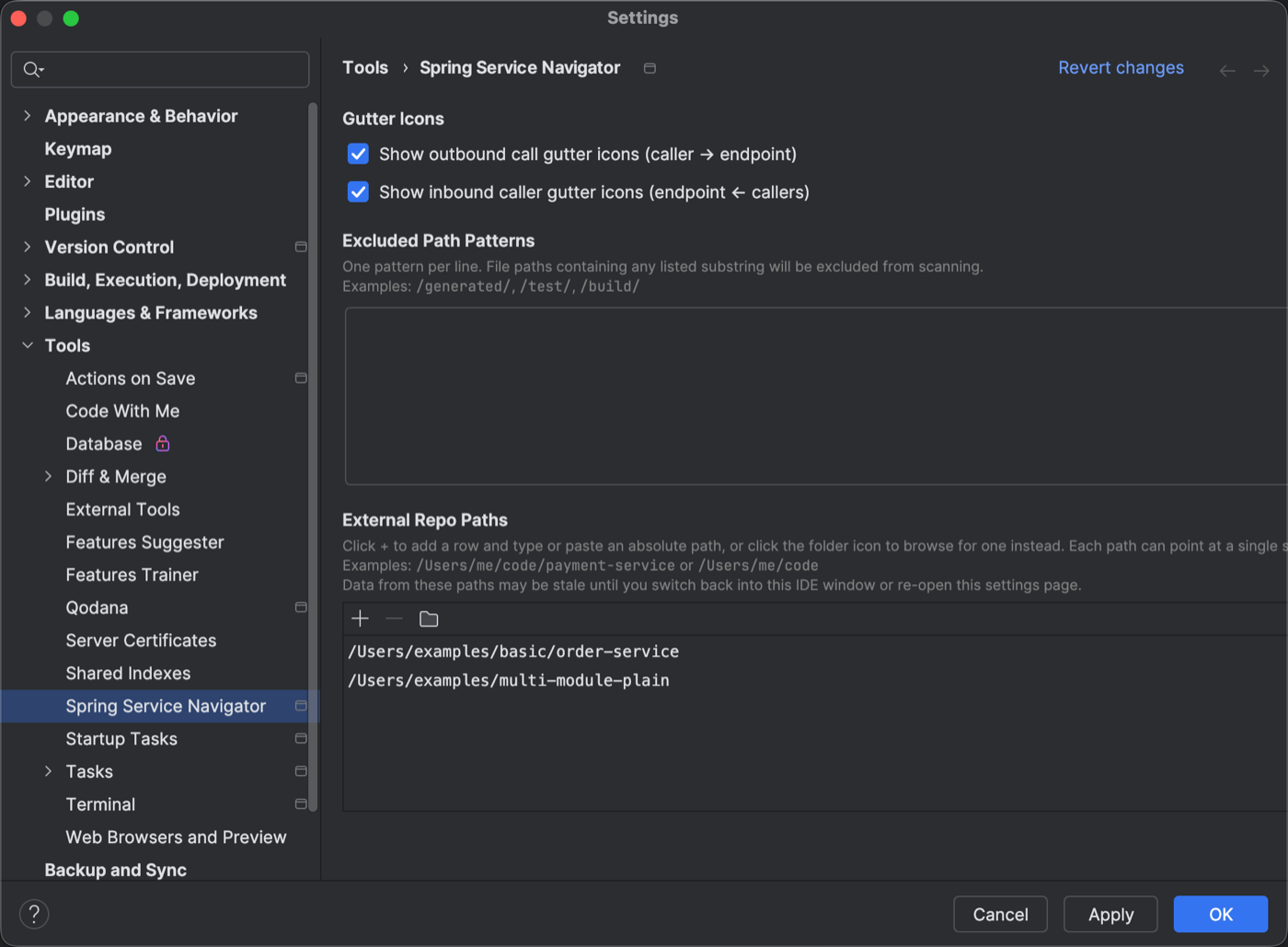
The toolbar above the path table has three actions: + adds a blank row to type or paste an absolute path into, the folder icon opens a native file chooser to browse for one instead (multi-select to add several repos at once), and − removes whichever row(s) are selected. Each row can point at either of two things:
| Row points at | What happens |
|---|---|
A single service repo, e.g. /Users/me/code/payment-service | That one service is scanned. |
A base directory containing several sibling repos, e.g. /Users/me/code | Every nested service underneath is discovered automatically, up to 10 folders deep — no need to list each one individually. |
Discovery looks for a folder containing pom.xml, build.gradle,
build.gradle.kts, or src/main, and stops descending once it finds
one — so a base directory containing order-service/,
payment-service/, user-service/, etc. picks up all of them from a
single row. Click Apply and every configured path
is scanned alongside this window's own content roots — the Service Navigator tool window,
gutter icons, and reverse-caller lookup all include it, no manual refresh needed.
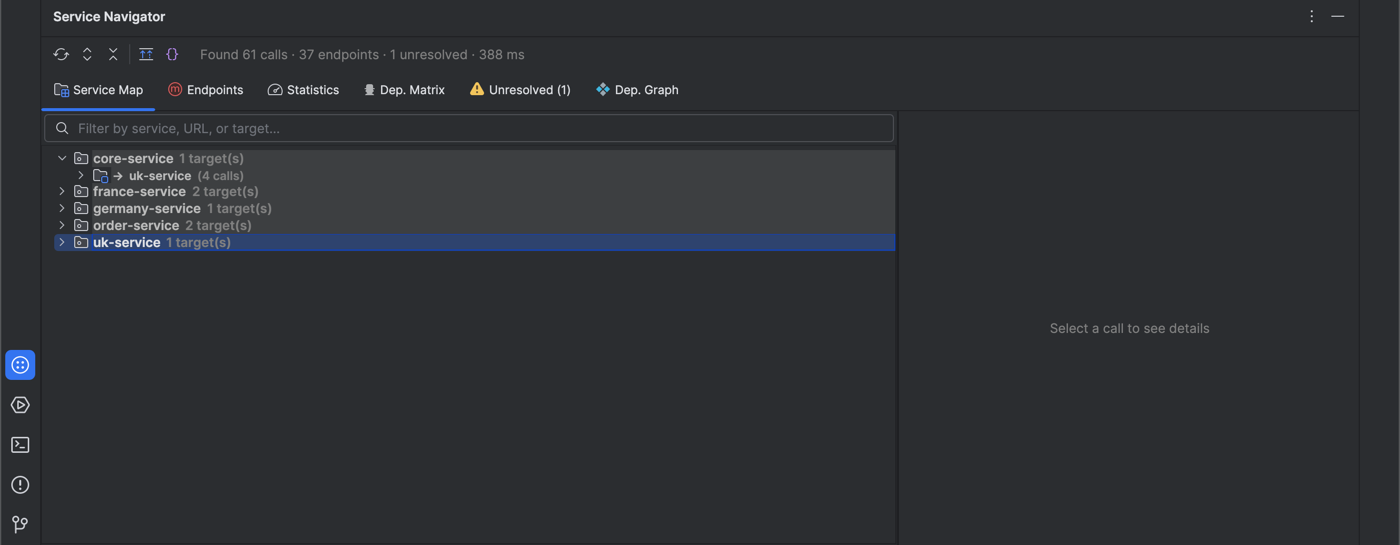
Two things worth knowing: sibling-repo data can be stale until you switch back into this IDE window, apply a settings change, or restart the IDE — edits made there while you stay focused on this window aren't picked up live, since that's inherent to how separate IntelliJ windows track changes independently. And the path list is local to this machine and this window — it isn't shared with teammates via version control, so each developer configures their own sibling repo locations.
Also Included
- Ctrl+Click navigation from URL string literals in Java files and from path entries in OpenAPI 3 YAML specs.
- An inspection that flags unresolved cross-service endpoint URLs, and code completion for known endpoint paths.
- Cancellable, background scanning that never blocks the IDE — dumb-mode safe.
Compatibility
- IntelliJ IDEA Community and Ultimate 2024.3 and later.
- Spring Boot 2.x and 3.x.
- Multi-module Gradle and Maven workspaces, and microservices split across separate git repos.
- OpenAPI 3 YAML specifications.